How to Map Your Smart Locks to Your Listings in Customer Portal
Last updated: March 18, 2026
Why This Matters
Before access codes can be automatically generated for your guest reservations, you need to tell us which lock belongs to which listing. Device-to-space mapping is the critical link between your reservation data and the physical devices. This guide walks you through mapping your devices to your properties.
Before You Start
Make sure you've already connected your smart lock account (e.g., Igloohome, Yale, Schlage, August). If you haven't done this yet, follow the steps in the Connect tab of your device portal first.
Step 1: Open the Organize Tab
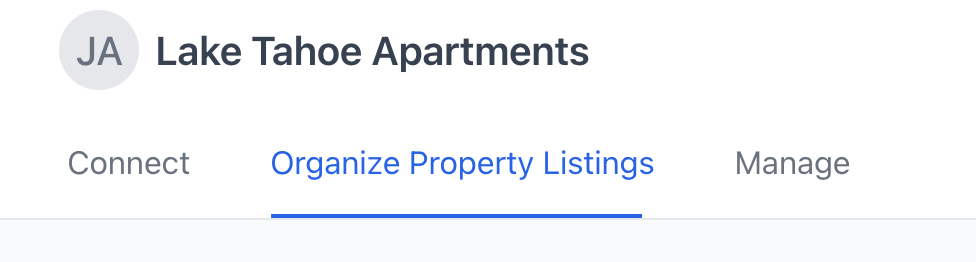
From your device portal, click on the Organize Property Listings tab. You'll see a list of your property listings on the left side.
Step 2: Select a Listing
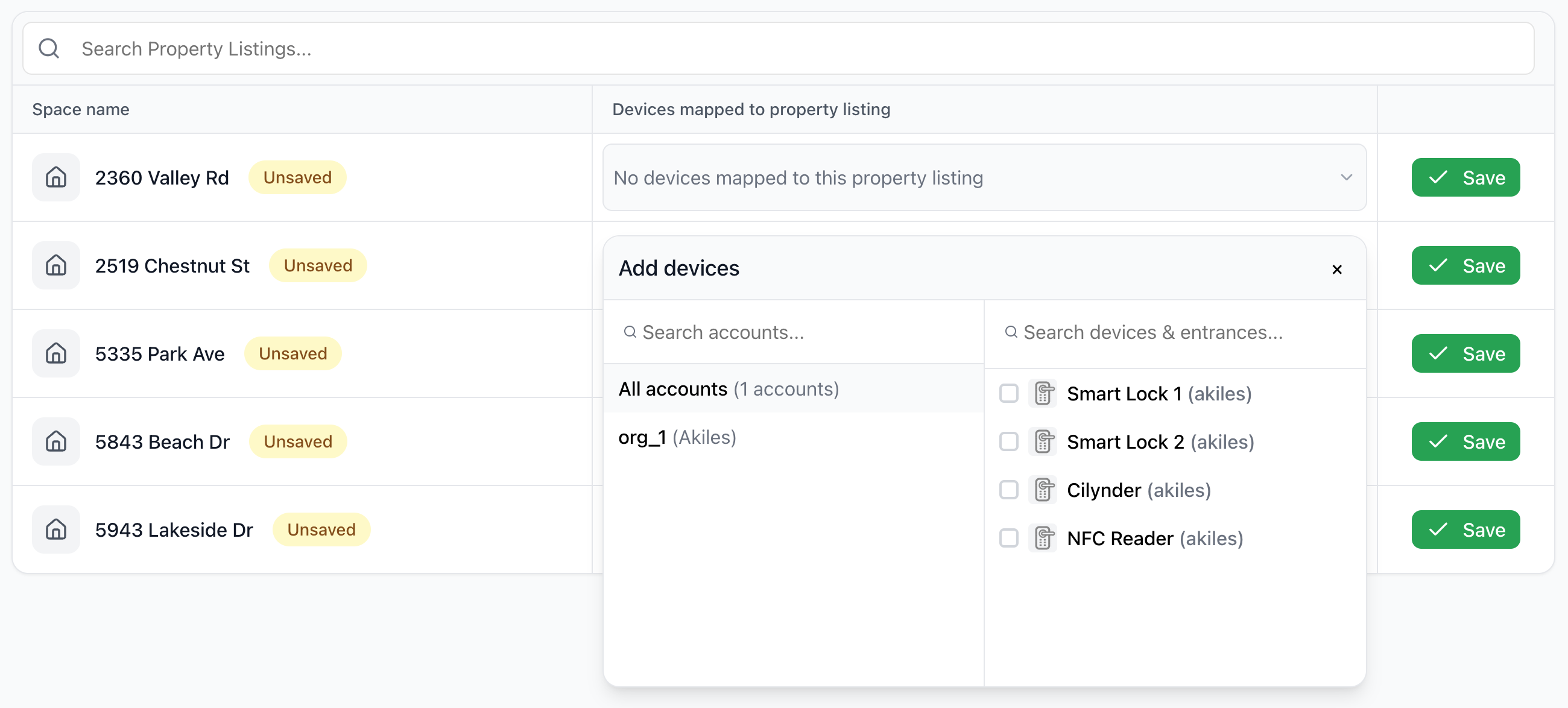
Click on the listing you want to assign a device to. This will open the mapping view for that specific property.
Step 3: Assign a Device
You'll see a list of your connected but unassigned devices. Click on a device to assign it to the selected listing. If you have multiple locks (e.g., a front door and a back door), you can assign more than one device to the same listing. Click the green "Save" button for the specific listing.
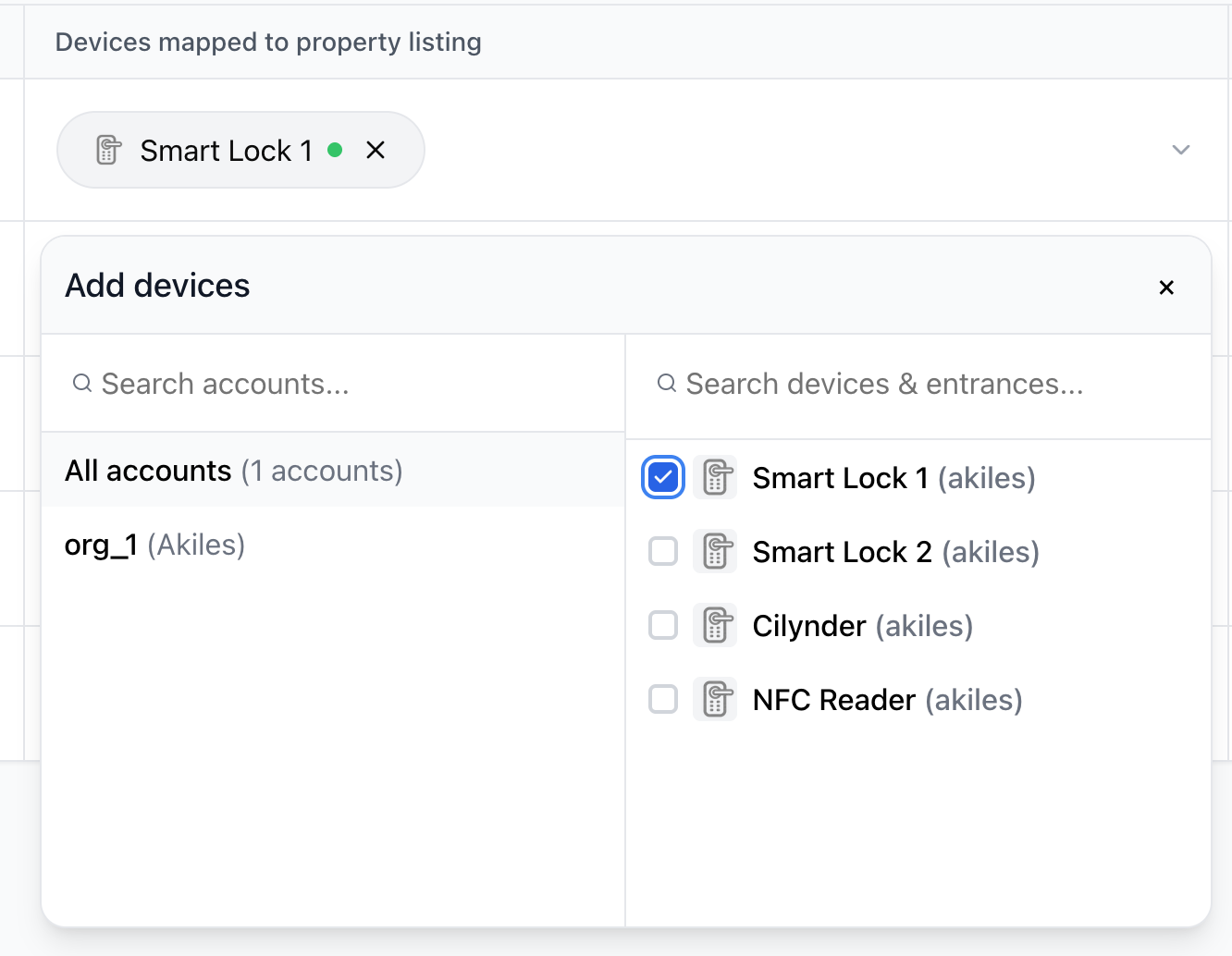
Once saved, you should see a confirmation and the device mapped to the listing successfully.

Step 4: Repeat for Each Listing
Go through each of your listings and assign the correct lock(s). Once a device is assigned, it will no longer appear in the unassigned list.
Step 5: Verify Your Mapping
After you've mapped all your devices, review the Organize tab to confirm each listing has the right lock(s) assigned.
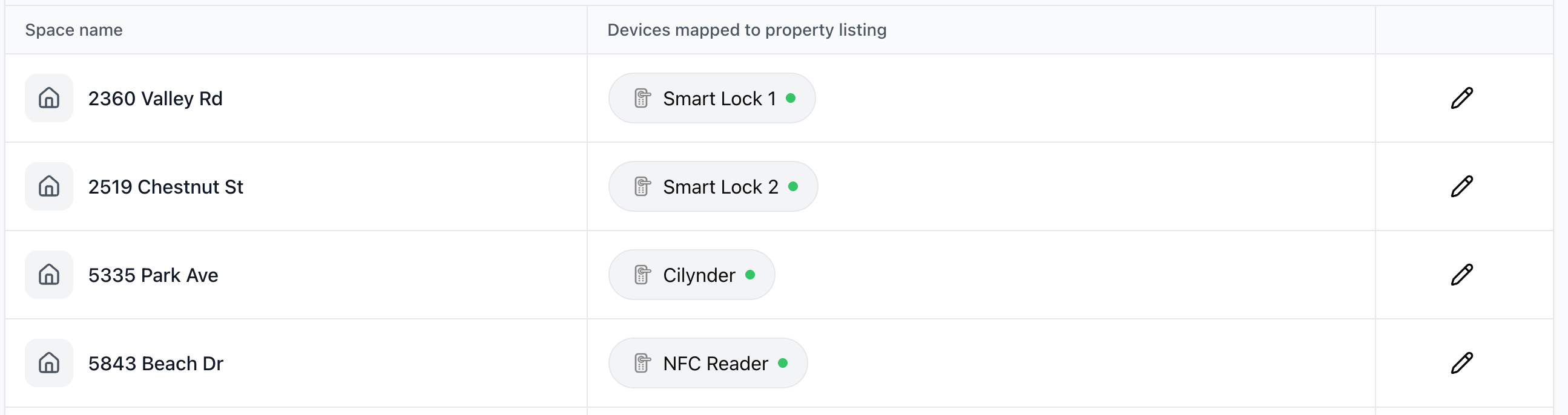
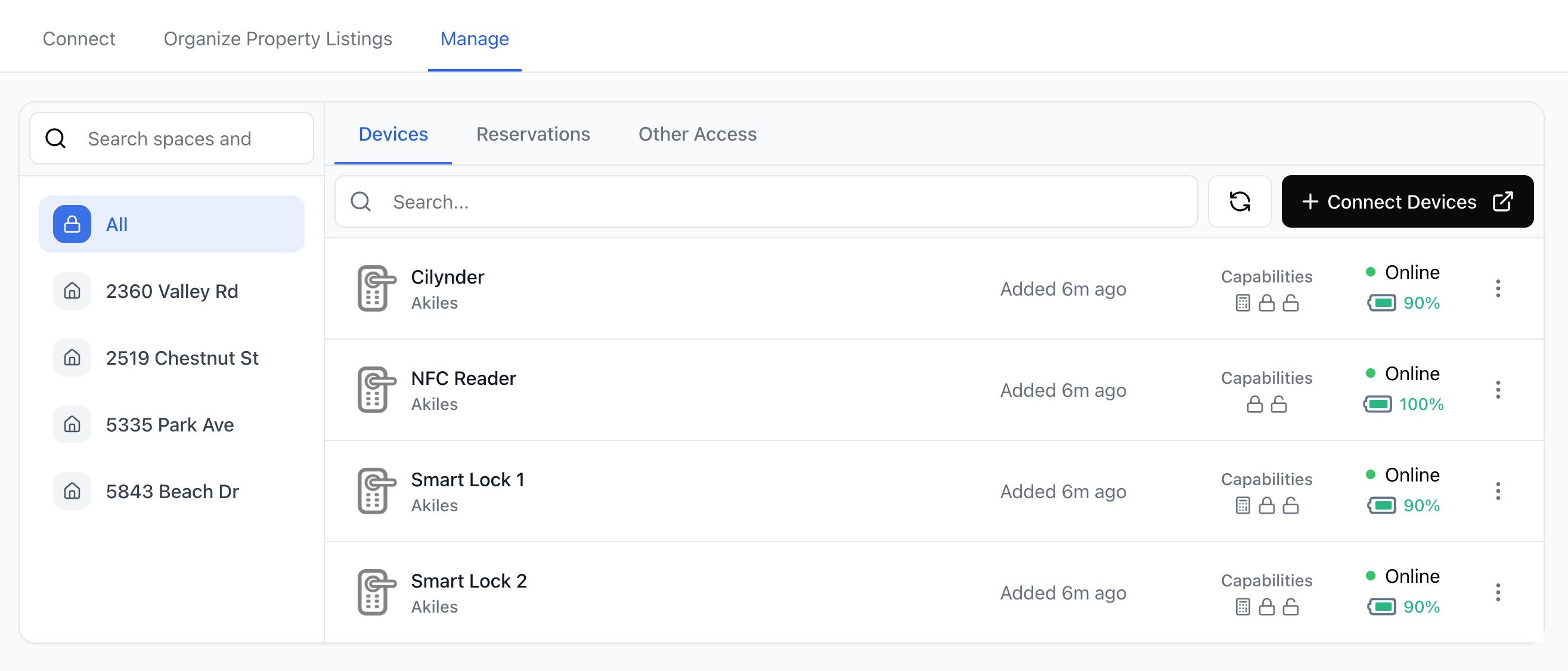
You can also check the Manage tab — select a listing from the sidebar and click the Devices tab to see which devices are linked.
What Happens Next
Once your devices are mapped to your listings, access codes will be automatically generated for upcoming guest reservations. You don't need to create codes manually — the system handles this based on your reservation check-in and checkout times.
You can view active access codes in the Manage tab under each listing, device, or within Reservations.
Troubleshooting
I don't see any devices in the Organize tab
Your smart lock account may not be connected yet. Go to the Connect tab and follow the steps to link your device provider account. After connecting, wait a minute or two for your devices to sync, then check the Organize tab again.
I connected my account but my devices still aren't showing up
- Make sure you're logged into the correct account for your lock provider (e.g., your Igloohome or Yale account, not your Enso account)
- Some lock providers take a few minutes to sync after connecting — try refreshing the page
- If your account was previously connected to another platform, you may need to disconnect it there first before it will work here
I mapped my devices but no access codes are being generated
- Confirm that upcoming reservations exist for the listing you mapped
- Check that the reservation has a check-in date in the future — codes are generated before the guest's arrival
- If you recently mapped the device, it may take a few minutes for codes to be generated for existing reservations
I assigned a device to the wrong listing
You can reassign devices at any time from the Organize tab. Unassign the device from the incorrect listing and assign it to the correct one. Any existing access codes will be updated automatically.
My lock shows as "Offline"
An offline lock can still receive access codes in some cases (depending on the lock brand), but connectivity issues may delay code delivery. Check that your lock has battery and is within range of its hub or bridge. See our troubleshooting guides for your specific lock brand for more details.