TTLock Devices Not Showing Up After Connecting Your Account
Last updated: August 26, 2026
You've connected your TTLock account to Seam, but no devices appear. This usually happens because you're not using the administrator account — only the administrator account (the account with admin privileges) can grant the API access Seam needs. Regular user accounts have limited permissions and won't work.
Verify You Have Administrator Access
Follow these steps to check if you're using an administrator account:
Step 1: Open the TTLock app
Step 2: Look at your lock list on the main screen
Step 3: Check the icon below each lock name
If you see a starred person icon: ✓ You are the top administrator of this lock and can connect it to Seam
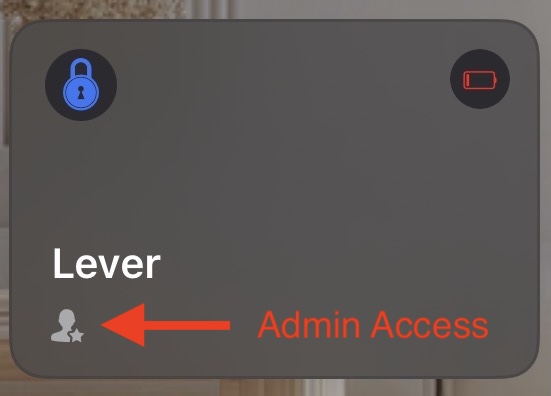
If you see a different icon: You have regular user access and cannot connect locks to Seam
What to do if you don't have the crown icon
If you don't see the "starred person" icon below your lock name, you'll need to connect using the top administrator account instead:
Step 1: Identify the top administrator
The top administrator is the person who originally set up the lock. This might be a property manager, building administrator, or another household member.
Step 2: Get top administrator credentials
You'll need the top administrator account's email/phone and password when connecting to Seam.
Step 3: Reconnect with the top administrator account
Disconnect the current account in Seam and reconnect using the top administrator account credentials.
Still Having Issues?
If you've confirmed you have the crown icon (top administrator access) and devices still aren't appearing, contact Seam support with:
The email address or phone number associated with your TTLock account
The lock model(s) you're trying to connect
Screenshots of your TTLock app showing the lock list with icons visible