Schlage Devices Not Showing Up After Connecting Your Account
Last updated: February 16, 2026
The Problem
You've connected your Schlage account to Seam, but no devices appear. This usually happens for one of two reasons:
You're not using the owner account — Only the owner account (the account that originally set up the locks) can grant the API access Seam needs. Admin and guest accounts have limited permissions and won't work.
Your lock isn't a supported model — Seam only supports Schlage Encode and Encode Plus. Other models like Sense and Arrive won't appear.
WiFi setup hasn't been completed — Even if your lock is installed and connected to the Schlage Home app via Bluetooth, it must be fully connected to WiFi to appear in Seam.
1. Verify You Have Owner Access
Follow these steps to check if you're using the owner account:
Step 1: Open the Schlage Home app
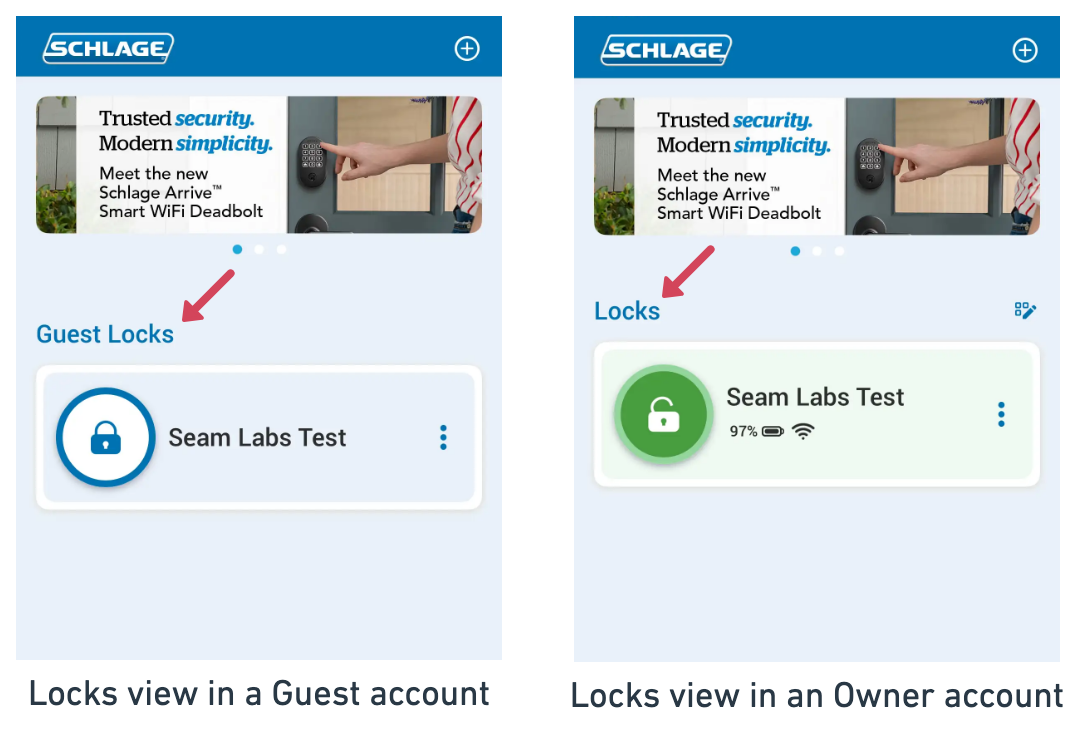
Step 2: Look at the heading above your locks on the Dashboard
If you see "Guest Locks": You have a guest account and cannot connect to Seam. Skip to "What to do if you don't have owner access" below.
If you see "Locks" (without the word "Guest"): Continue to Step 3.
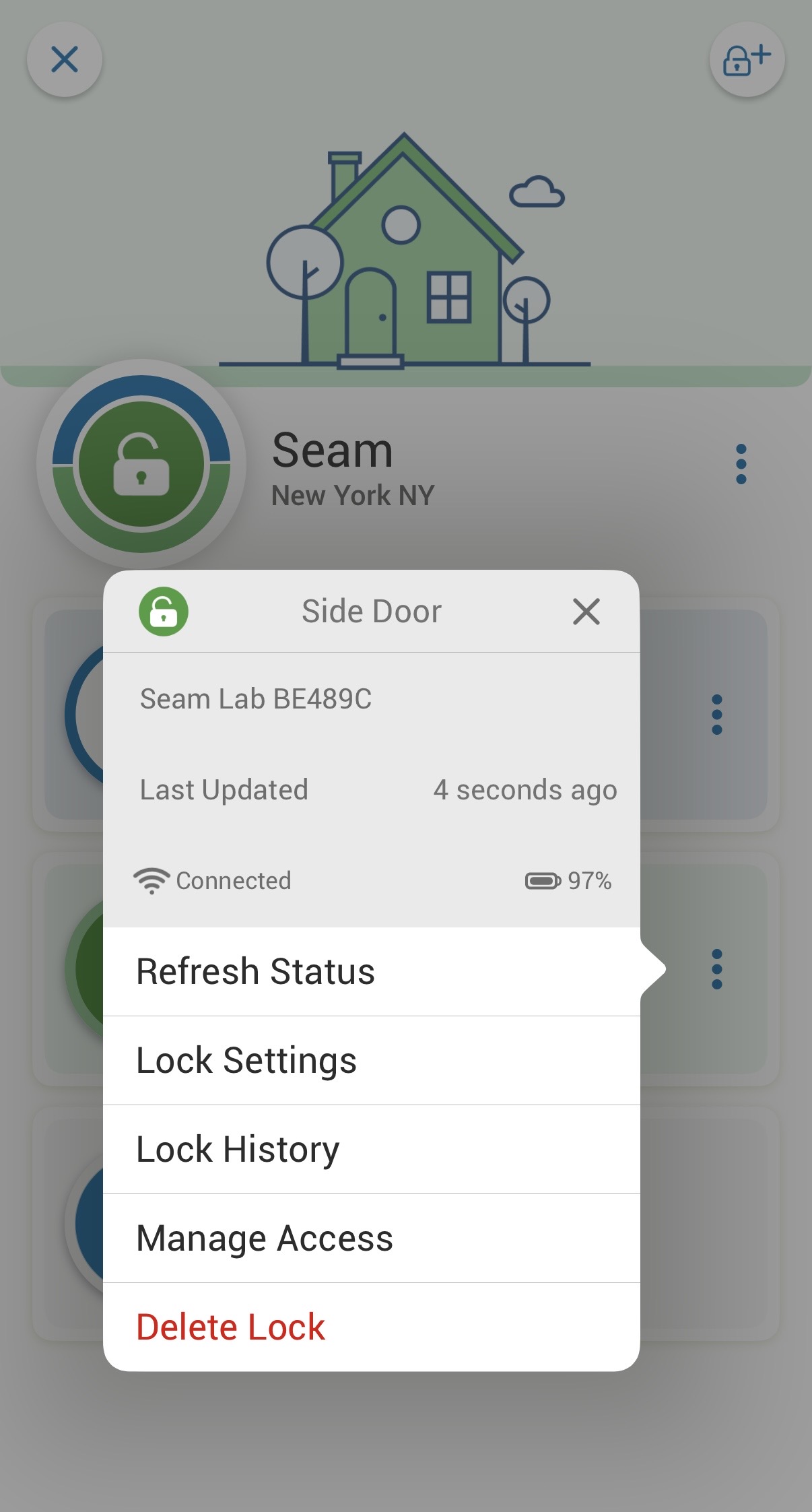
Step 3: Tap the three dots next to your lock, tap "Manage Access".
Step 4: Tap "Virtual Keys"

Step 6: Find your account in the list and check the label
If your account is labeled "Owner": ✓ You can connect locks to Seam.
If your account is labeled "Admin": You cannot connect locks to Seam. Continue to "What to do if you don't have owner access" below.
What to do if you don't have owner access
If you have a guest account (showing "Guest Locks") or admin access (labeled "Admin" in Virtual Keys), you'll need to connect using the owner account instead:
Step 1: Identify the owner
The account listed as "Owner" in Manage Access > Virtual Keys is the one you need. This might be a property manager, building administrator, or another household member. If you can't access Virtual Keys, ask whoever gave you access to the lock.
Step 2: Get owner credentials
You'll need the owner account's email and password when connecting to Seam.
Step 3: Reconnect with the owner account
Disconnect the current account in Seam and reconnect using the owner account credentials.
2. Verify WiFi Setup is Complete
Important: Even if your lock appears in the Schlage Home app, it must be fully connected to WiFi (not just Bluetooth) to work with Seam.
How to check if WiFi is connected:
Open the Schlage Home app
Tap the three dots next to your lock name
Tap WiFi Settings
Check if a WiFi network is connected
If WiFi is not connected:
Complete the WiFi setup process:
In the Schlage Home app, tap the three dots next to your lock
Select WiFi Settings
Choose your WiFi network (must be 2.4 GHz)
Enter your WiFi password
Wait for the connection to complete
Note: If you initially set up your lock using Bluetooth only, you must go back and add WiFi connectivity. Bluetooth-only locks will not appear in Seam.
3. How to Check Your Lock Model
Open the Schlage Home app and find your lock's model number:
Tap the three dots on your lock
Tap Lock Settings
Tap Information
Look at the Model Number field
Supported models:
Schlage Encode Deadbolt
Encode Plus
Encode Levers
Not supported:
Schlage Arrive — BE459
Schlage Sense — BE479
If you have an unsupported model, it won't appear in Seam even with an owner account.
Still Having Issues?
If you've confirmed you're using an owner account and devices still aren't appearing, contact Seam support with:
The email address associated with your Schlage account
The lock model(s) you're trying to connect
Screenshots of your Schlage Home app Dashboard