Hotek: How to Find Your Room Numbers, Common Doors, and Encoders
Last updated: June 15, 2026
After connecting your Hotek system through Seam, we need three pieces of information to finish configuring your account. You can find all of this in the Hotek SMART software.
Please include the Connected Account ID we've included in the email we sent to you. If you didn't receive the email, you can send the information below to support@getseam.com along with your Connected Account ID.
Guest Rooms
Open Hotek SMART
Click the Room icon in the top left corner of the screen
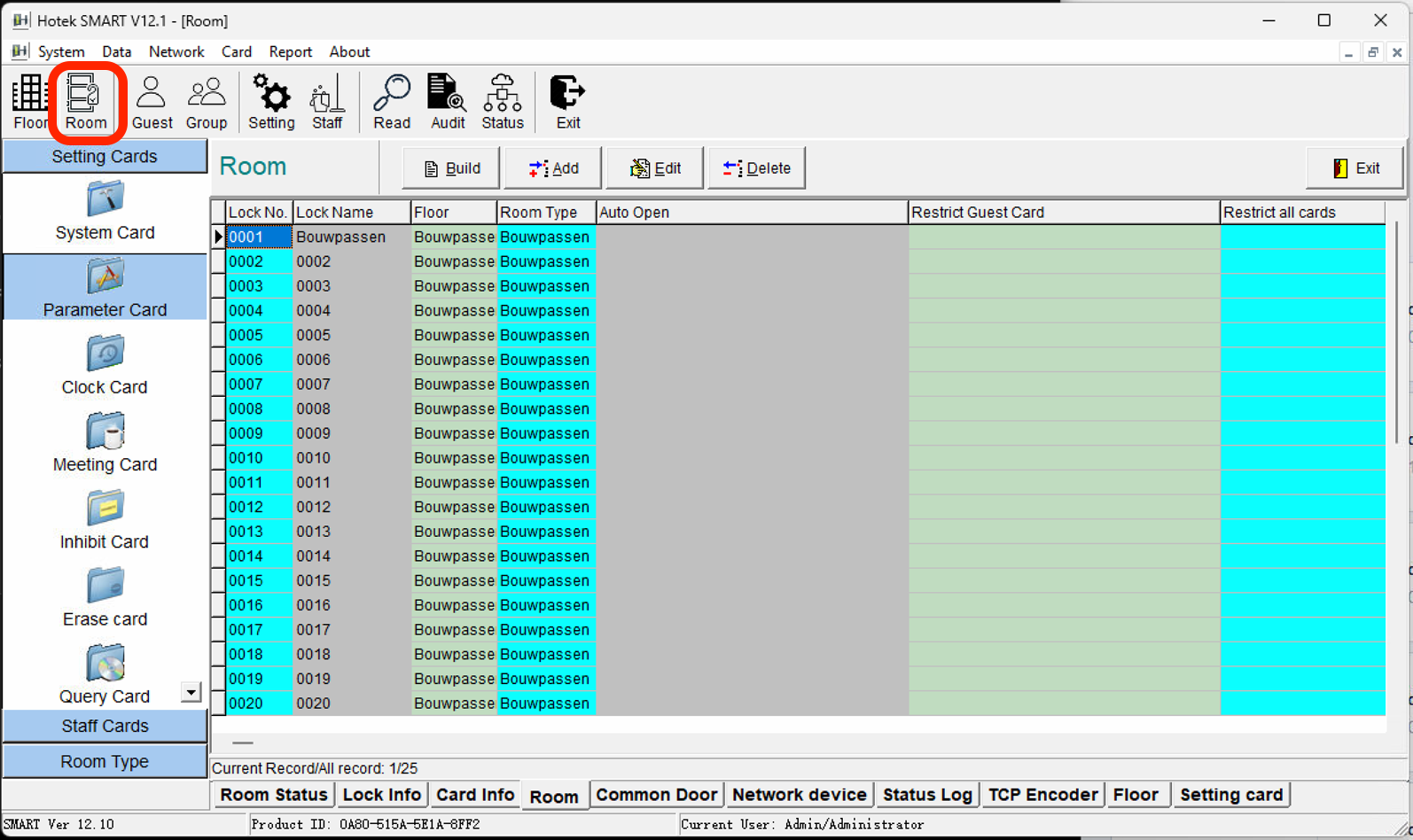
Adjust the Lock Name column to make sure the full name can be visible
Send us screenshots of the full room list, showing the Lock No. and Lock Name columns. Scroll and send multiple screenshots if needed
Common Doors
In Hotek SMART, click the Room icon in the top left corner of the screen
Click the Common Door tab at the bottom of the screen
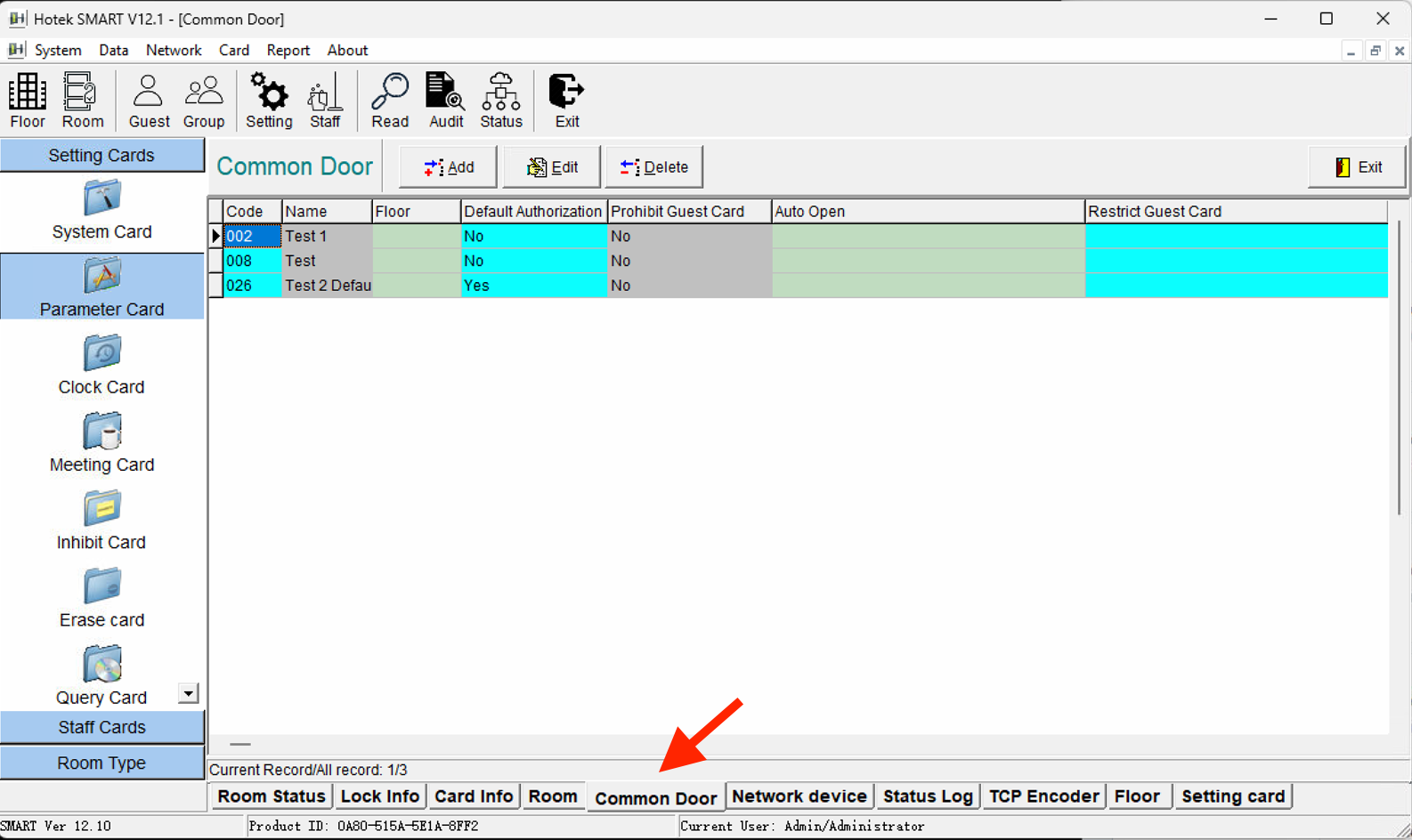
Adjust the Name column to make sure the full name can be visible
Send us a screenshot showing the Code and Name columns
Send us screenshots of the full common door list, showing the Code and Name columns. Scroll and send multiple screenshots if needed
Encoders
In Hotek SMART, click Card in the menu bar
Click TCP Encoder
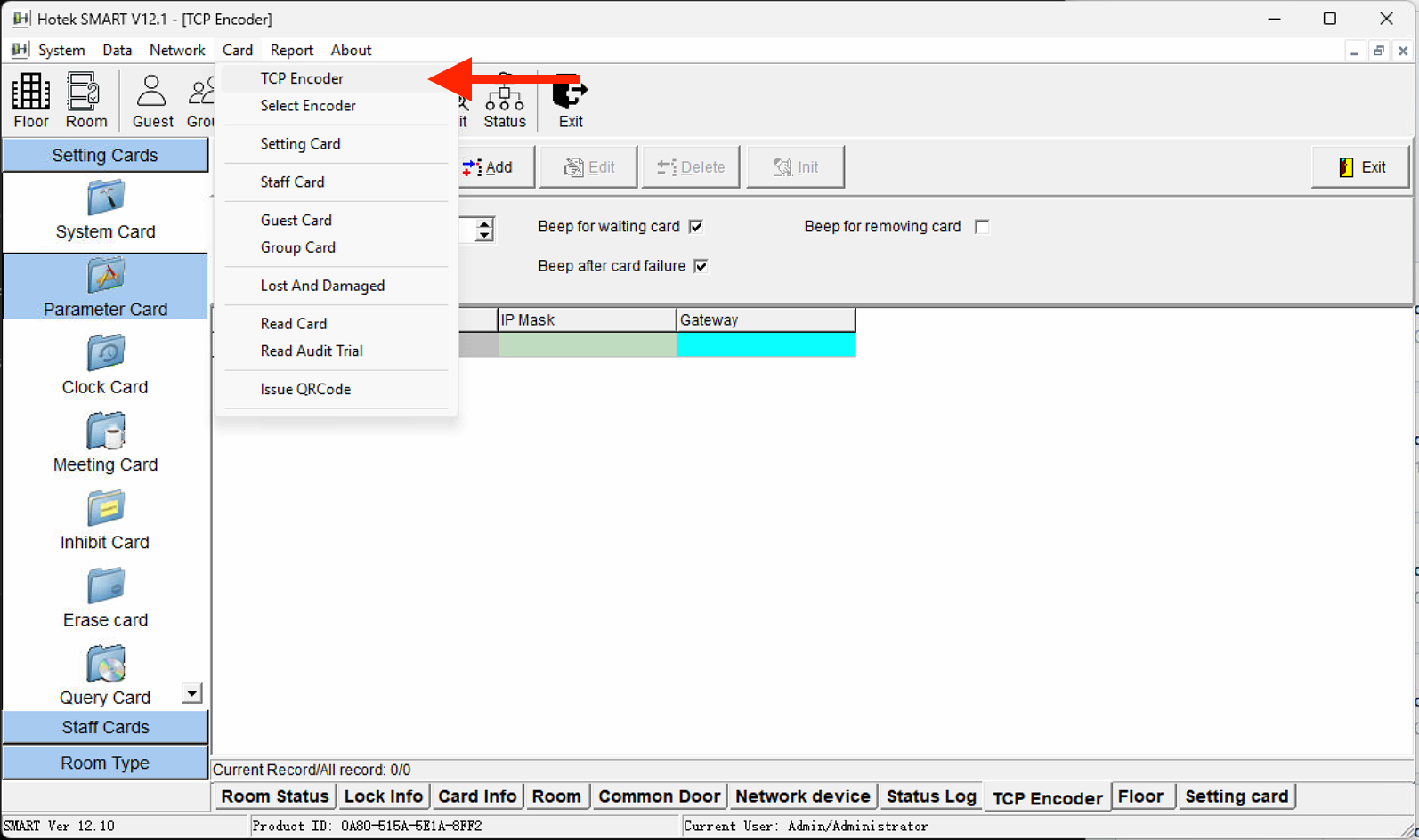
Send us a screenshot showing the Encoder No. column
If you're just using a USB encoder, let us know in the email