Igloohome: Troubleshooting Device Online Status
Last updated: March 9, 2026
If your Igloohome device is showing as offline in Seam, this guide explains how online status works and how to fix it.
If you have a Deadbolt Go lock: We're currently seeing elevated reports of this model appearing offline in Seam even when functioning normally. Please contact Igloo support to debug.
How Seam determines online/offline status
Seam uses two signals to determine if a device is online:
Bridge connectivity — if the device's paired Igloohome Bridge goes offline, the device is marked offline in Seam.
Message delivery — when Seam sends a command to the device (e.g., programming an access code) and the device doesn't respond before the message expires, Seam marks the device as offline.
Note: Offline access codes (algoPIN) continue to work at the physical lock even when a device shows as offline in Seam.
Troubleshooting Flow
Step 1: Check Bridge Power and Internet
Confirm that the Bridge is plugged in and LED lights are on.
Confirm your Wi-Fi is working.
Step 2: Check Bridge Status in Igloohome App
Go to Devices → find your Bridge → check status (green = online, red = offline).
If offline:
Unplug the Bridge, wait 10 seconds, plug back in, wait 2–3 minutes
Tap Bridge → Diagnostics → Check network status to verify connectivity
If needed, tap Change WiFi network to reconnect

Step 3: Check Lock or Keypad Connection
This is the most common cause of code failures when the Bridge appears online.
For locks with a separate keypad: both the lock AND keypad must be linked to the Bridge.
View Connection Status in Diagnostics
Open the Igloohome app
Go to Devices tab
Tap on your bridge (not the lock)
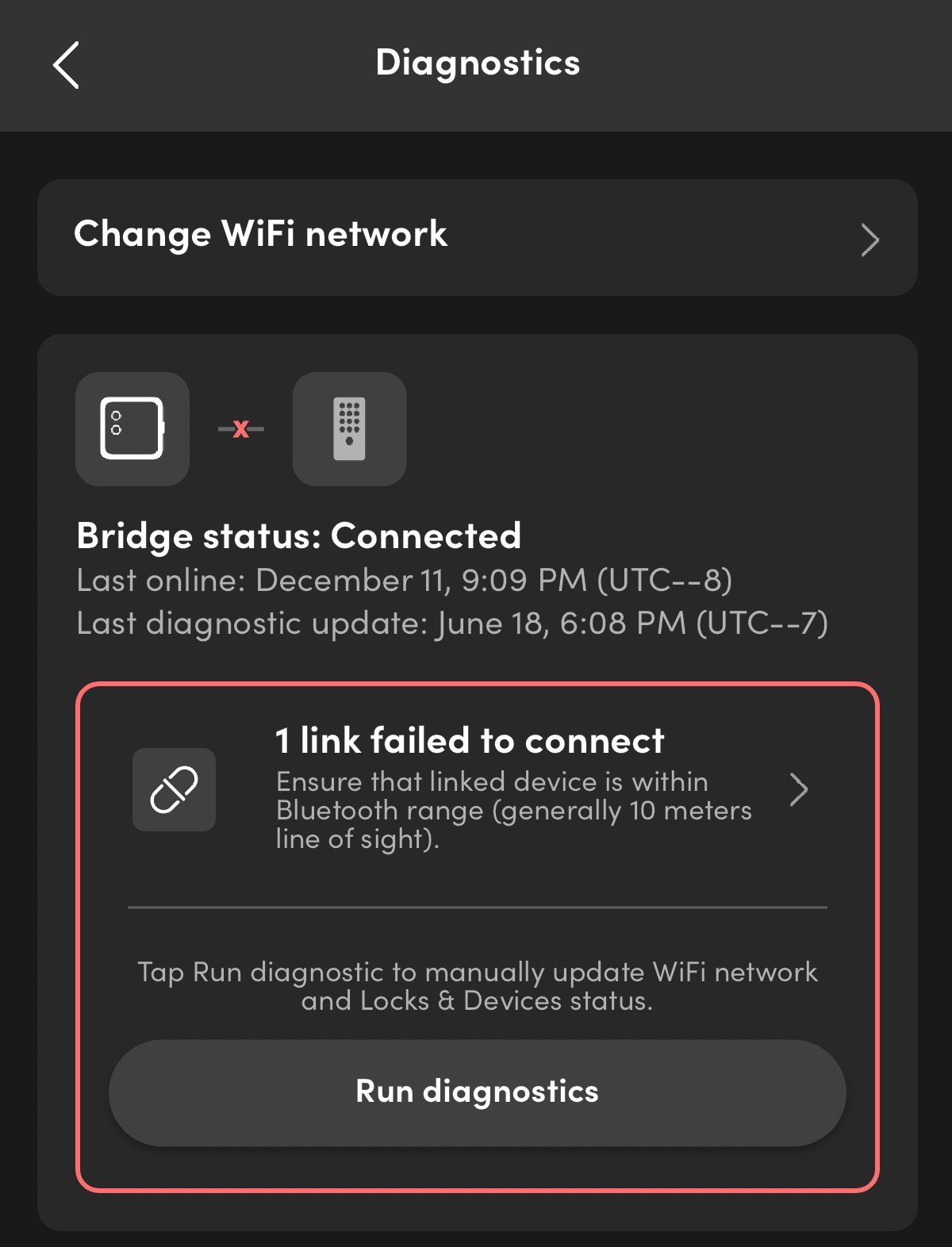
Tap Diagnostics → Check network status
Look for "1 link failed to connect" or similar messages
Re-Link Your Lock or Keypad to the Bridge
If you need to re-connect your lock or keypad to the bridge, see this detailed guide from Igloohome: Igloohome's official pairing and linking guide.
Step 4: Fix Lock-to-Bridge Distance Issues
Maximum range is 10 meters (33 ft) line of sight — walls and metal doors reduce this significantly. Move the Bridge closer to the lock or add a second Bridge.
After adjusting, wait 5 minutes or tap Run diagnostics on the Bridge to refresh.
Step 5: Check battery, firmware, and restart
Replace batteries if below 20%
Update Bridge and lock firmware via the Igloohome app (Devices/Locks → tap device → check for updates)
If still offline: unplug Bridge for 30 seconds, plug back in, wait 3–5 minutes
Still Having Issues?
If you've completed all steps and your bridge is still showing offline, reach out to Igloo support with your device ID, bridge ID, and steps already tried.