Lockly Devices Not Showing Up After Connecting Your Account
Last updated: January 30, 2026
The Problem
You've connected your Lockly account to Seam, but no devices appear. This typically happens when your lock hasn't been properly configured in the Lockly app before connecting to Seam.
Requirements for Lockly Locks to Work with Seam
For your Lockly lock to appear in Seam, two conditions must be met:
Your lock must be online — The lock needs to be connected to the internet through the Lockly app
"Sync with LocklyOS" must be enabled — This setting allows the lock to communicate with external systems like Seam
How to Verify Your Lock is Configured Correctly
Step 1: Check if your lock is online
Open the Lockly app
Select your lock
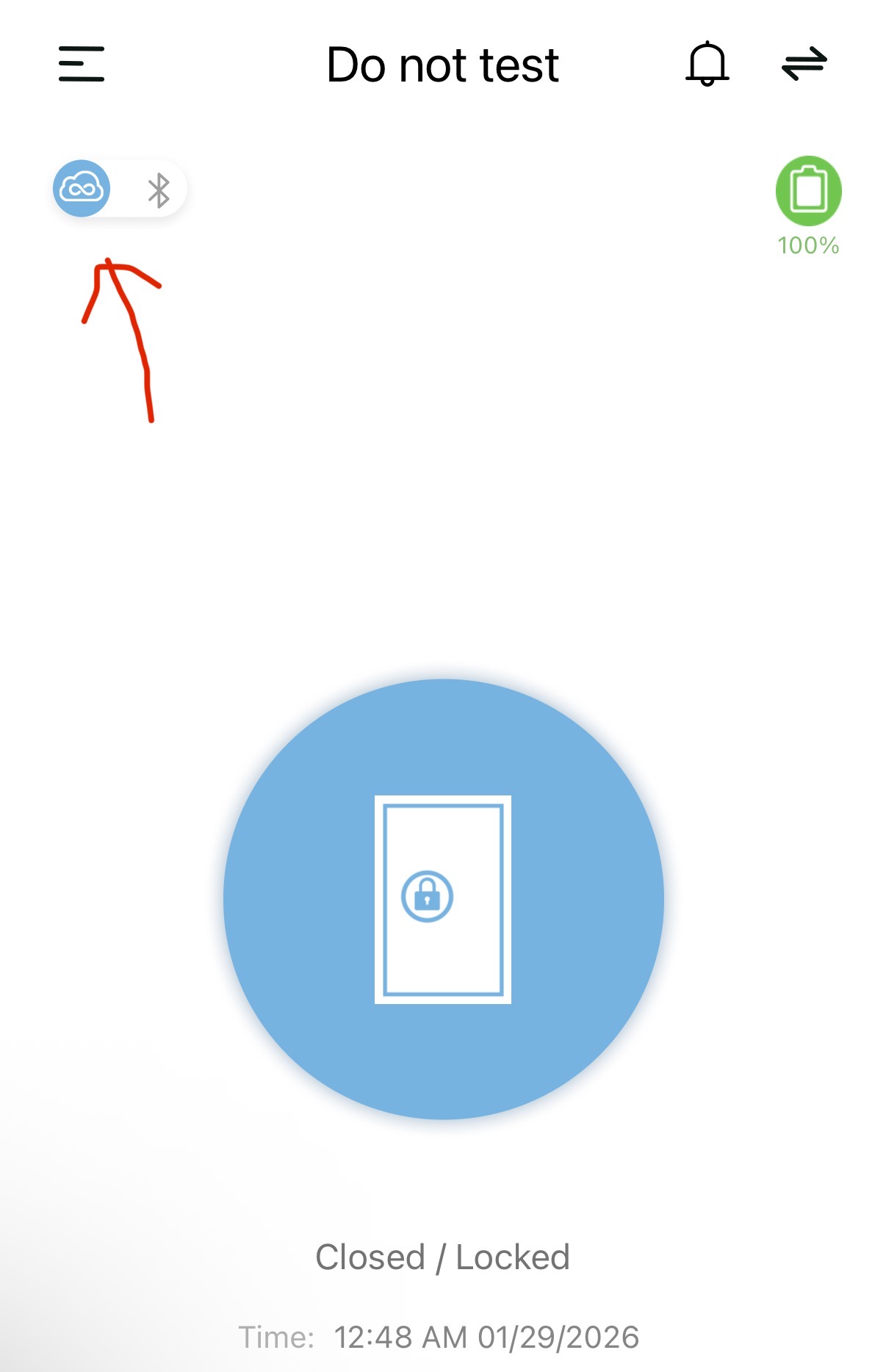
Check that there is a cloud-shaped icon on the top left. If it's there, your lock is connected to the internet.
If your lock is offline, follow the Lockly app's setup instructions to connect it to your WiFi network.
Step 2: Enable "Sync with LocklyOS"
Open the Lockly app
Select your lock
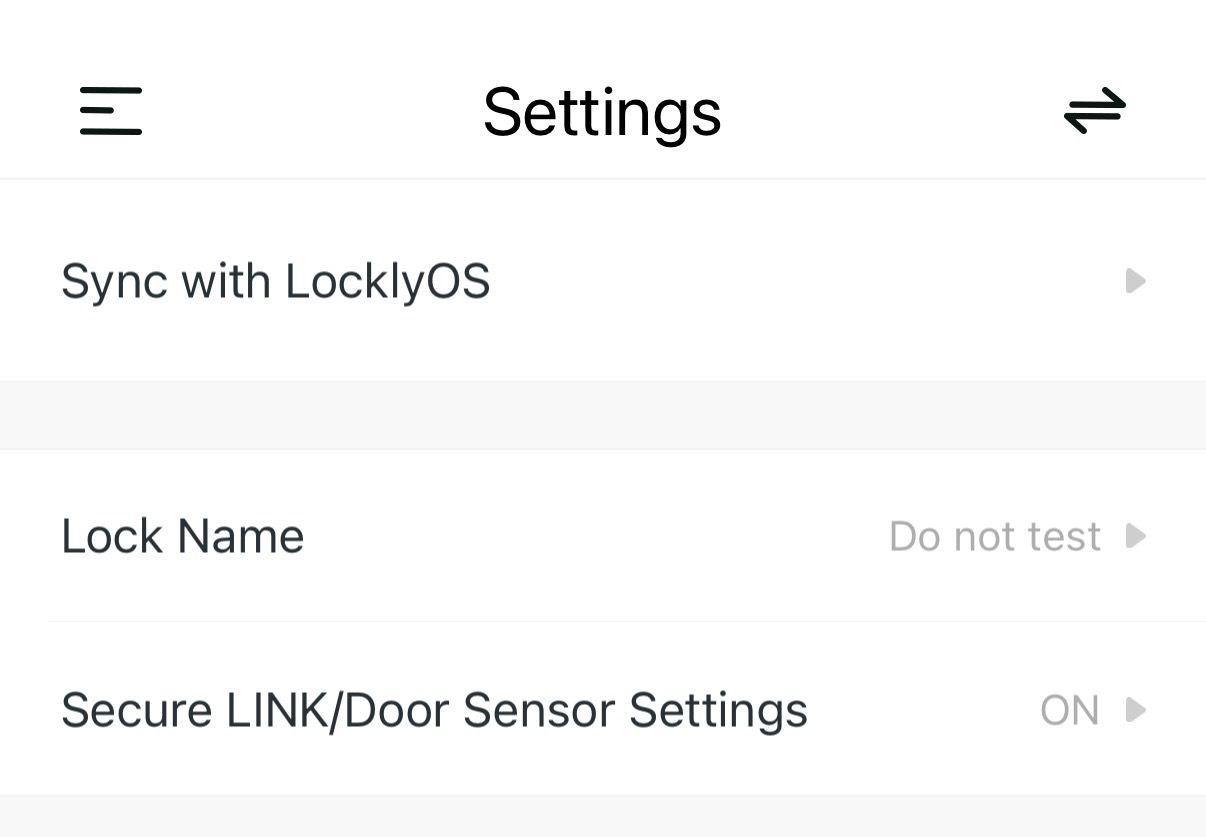
Go to lock "Settings" on the bottom right corner
Find the "Sync with LocklyOS" setting
Make sure it is enabled/turned on
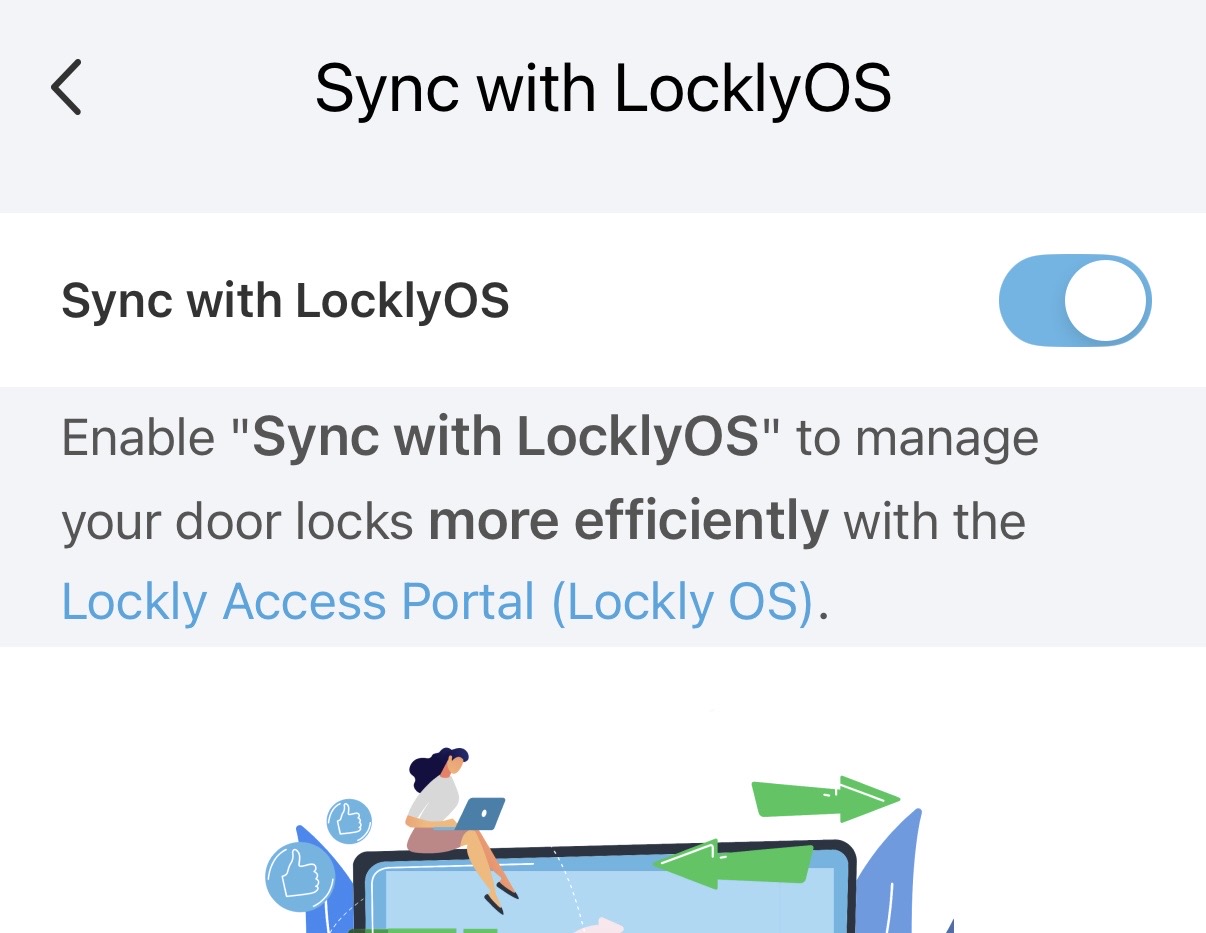
Important: This setting must be enabled before you connect your account to Seam. If you previously connected without this enabled, you'll need to reconnect your account after enabling it.
After Completing Setup
Once both requirements are met:
If you haven't connected yet, proceed with connecting your Lockly account to Seam
If you already connected but devices didn't appear, disconnect your account and reconnect it
Your Lockly devices should now appear in Seam.
Still Having Issues?
If you've confirmed your lock is online and "Sync with LocklyOS" is enabled but devices still aren't appearing, contact Seam support with:
The email address associated with your Lockly account
The lock model(s) you're trying to connect
Screenshots showing your lock is online and "Sync with LocklyOS" is enabled